

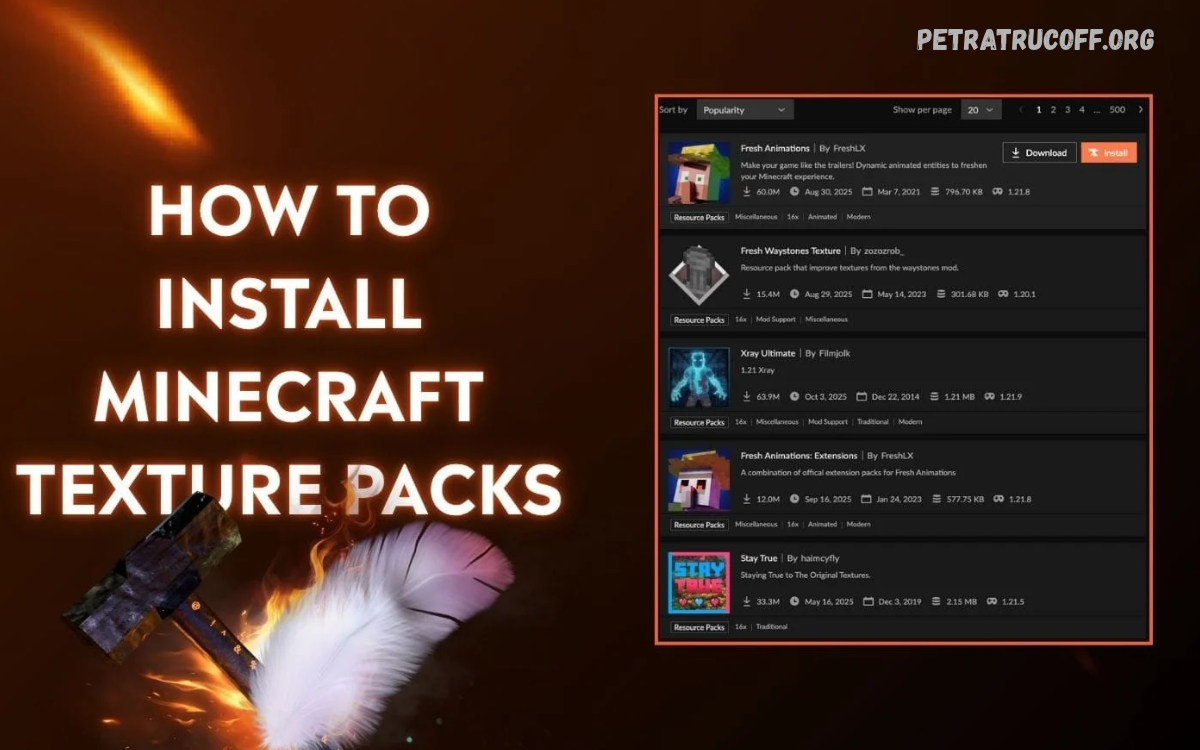
Minecraft texture packs transform the appearance of blocks, items, mobs, and environments. A successful minecraft texture pack installation helps players customize their worlds, improve visual quality, and create a unique gaming experience.
Whether you play Minecraft Java Edition on a computer or Bedrock Edition on mobile, console, or Windows, installing texture packs is straightforward. This guide explains the complete process, compatibility requirements, activation steps, and common troubleshooting methods.
What Is Minecraft Texture Pack Installation?
Minecraft texture pack installation involves adding custom visual files to the game and activating them through its settings. These packs can change block textures, item designs, interface elements, and other visual details without changing the basic gameplay.
Modern Minecraft versions commonly use the term resource pack instead of texture pack. Resource packs can modify additional elements, including sounds, fonts, and menus, depending on their contents and compatibility.
Benefits of Installing Minecraft Texture Packs
Texture packs allow players to personalize Minecraft according to their preferences. Some packs provide realistic environments, while others offer cartoon-inspired designs, medieval textures, smooth blocks, or classic Minecraft visuals.
The right pack can make building, exploring, and survival gameplay more enjoyable. Lightweight packs may also work well on less powerful devices, although performance depends on texture resolution, device specifications, and the pack’s features.
Requirements Before Minecraft Texture Pack Installation
Before installing a pack, check your Minecraft edition and game version. Java Edition resource packs generally differ from Bedrock Edition packs, so downloading a compatible file helps prevent installation errors and missing textures.
You should also check the file format, storage space, and device requirements. Java packs commonly use ZIP files, while Bedrock packs frequently use MCPACK files that Minecraft can import directly.
How to Install Minecraft Texture Packs on Java Edition
Download a compatible resource pack from a trusted Minecraft resource website. Select a pack matching your Minecraft version, then save its ZIP file to your computer without extracting it unless the pack’s instructions specifically require extraction.
Open Minecraft Java Edition, select Options, choose Resource Packs, and click Open Pack Folder. Move the downloaded ZIP file into this folder, return to Minecraft, and select the pack from the available resource packs list.
How to Install Minecraft Texture Packs on Windows Bedrock Edition
Minecraft Bedrock Edition on Windows supports resource packs designed specifically for Bedrock. Download a compatible MCPACK file from a trusted source, then open the downloaded file using Minecraft if your system supports that file association.
Minecraft should import the pack and display an import confirmation when successful. Open your world settings, locate the resource packs section, select My Packs, and activate the imported pack. Menu names may vary slightly between game versions.
How to Install Minecraft Texture Packs on Android
Installing a texture pack on Android is simple when the pack comes in MCPACK format. Download the file using your browser, open your Downloads folder, and tap the file to launch Minecraft. Choose Minecraft if Android asks which application should open it.
Wait for the import process to finish, then open Minecraft and enter your world settings. Find Resource Packs, select My Packs, and activate the desired pack. If the file opens as an archive instead, verify its format and use the pack’s official installation instructions.
How to Install Minecraft Texture Packs on iPhone and iPad
For Minecraft Bedrock Edition on iOS or iPadOS, download an MCPACK file from a trusted website using Safari or another browser. Open the downloaded file through the Files app, tap the share or file-opening option if needed, and select Minecraft from the available applications.
After Minecraft imports the pack, open the game and navigate to the relevant world settings. Select the imported pack under Resource Packs, activate it, and load your world to check the results. If Minecraft does not appear as an available option, confirm that the file is compatible with your game version.
How to Activate a Minecraft Texture Pack
Downloading and importing a texture pack does not always activate it automatically. In Java Edition, open Options, select Resource Packs, move the desired pack into the active column, and confirm your selection to apply the changes.
In Bedrock Edition, open the world settings and find the resource packs section. Select My Packs, choose your preferred pack, and tap Activate. Some Bedrock versions also support global resource packs that apply to multiple worlds, depending on the platform and available settings.
How to Install Multiple Minecraft Texture Packs
Minecraft allows players to use multiple compatible resource packs simultaneously. In Java Edition, the order of active packs matters because packs higher in the list generally take priority when they modify the same resource. This feature helps combine different visual styles.
For example, one pack might change block textures while another modifies item designs. However, overlapping files can produce unexpected results, so test each combination carefully. Bedrock Edition also supports multiple resource packs in supported configurations, although compatibility and priority behavior can vary by version.
How to Choose the Best Minecraft Texture Pack
Choose a texture pack according to your preferred visual style and device capabilities. Faithful packs preserve Minecraft’s familiar appearance, realistic packs add detailed textures, and cartoon-style packs create colorful environments suited to creative building or casual gameplay.
Check the pack’s supported Minecraft version, resolution, screenshots, and installation instructions before downloading. A 16×16 or 32×32 texture pack may suit devices with limited resources, while 64×64 and higher resolutions can require more memory and graphics performance.
Minecraft Texture Pack Installation Troubleshooting
If a texture pack does not appear in Java Edition, verify that its ZIP file is inside the correct resourcepacks folder. Check whether the archive contains the expected pack files, including pack.mcmeta and the appropriate asset directories. An incorrectly nested folder can prevent Minecraft from recognizing the pack.
If a Bedrock pack fails to import, check whether the downloaded file uses the correct MCPACK format and supports your game version. Try downloading the file again from its original source if the download appears incomplete. Restarting Minecraft can also help resolve temporary loading problems.
Read Also: Minecraft Survival Base Design: Best Ideas, Layouts, and Building Tips
How to Fix Missing Textures in Minecraft
Missing textures may appear when a pack references assets that do not exist or when its files are incompatible with your Minecraft version. Disable the affected pack and return to the default resources to determine whether the issue disappears.
If the default textures work correctly, check the pack’s compatibility notes and download a version intended for your edition. For Java Edition, review the pack’s folder structure and version metadata. For Bedrock Edition, confirm that the pack supports your current release and contains the required resources.
How to Improve Minecraft Performance With Texture Packs
Texture packs can affect performance, especially when they contain high-resolution images or extensive visual modifications. If Minecraft becomes slow after activation, switch to a lower-resolution pack, reduce other graphics settings, and close unnecessary applications running on your device.
Players using Java Edition can also review render distance and other performance settings. Bedrock players should test packs individually to identify resource-heavy options. Remember that texture resolution is only one factor; shaders, device hardware, world complexity, and other active packs can also influence performance.
How to Update or Remove Minecraft Texture Packs
When Minecraft receives an update, some resource packs may require newer versions to work correctly. Visit the original download page, check the compatibility information, and download an updated release if one is available. Keep a backup of custom packs before replacing or reorganizing their files.
To remove a pack, deactivate it through Minecraft’s resource pack settings. In Java Edition, you can also delete its ZIP file from the resource packs folder after closing the game. On Bedrock platforms, remove imported packs through the available storage or resource pack management settings.
Common Minecraft Texture Pack Installation Mistakes
One common mistake is downloading a pack designed for a different Minecraft edition. Java resource packs generally cannot be installed directly into Bedrock Edition, and Bedrock MCPACK files are not automatically compatible with Java Edition. Always verify the edition before downloading.
Another mistake is extracting or renaming files unnecessarily. Java resource packs typically work as ZIP archives, while Bedrock packs often import through MCPACK files. Changing file extensions does not convert a pack into another format, and extracting files into the wrong directory can prevent successful installation.
Is Minecraft Texture Pack Installation Safe?
Texture packs obtained from reputable creators and established Minecraft community websites are generally a better choice than files from unknown sources. Review download details, avoid suspicious installers, and be cautious when a website requests unnecessary permissions or asks you to install unrelated software.
A standard texture pack should not require an unknown executable to change Minecraft’s visuals. Scan downloaded files with your device’s security software when appropriate, and keep backups of important worlds. Use trusted sources and respect creators’ licensing terms when downloading or sharing resource packs.
Frequently Asked Questions
Can I Install Minecraft Texture Packs for Free?
Yes, many Minecraft texture packs are available for free from independent creators and established community websites. Some packs are paid, and Bedrock Edition also offers marketplace content. Check the licensing terms, download requirements, and compatibility information before selecting a pack.
Do Texture Packs Work on Every Minecraft Version?
No, texture packs do not necessarily work across every version or edition. Older packs may contain outdated resource definitions, while newer packs may use features unsupported by older releases. Always check the creator’s compatibility notes and choose a pack designed for your version.
Do Minecraft Texture Packs Change Gameplay?
Most texture packs primarily change visual elements, including blocks, items, mobs, and interfaces. They generally do not alter core gameplay mechanics, although certain resource packs may include custom sounds or other supported visual features. Gameplay modifications usually require additional tools or different content types.
Why Is My Minecraft Texture Pack Not Working?
A texture pack may fail because of an incompatible edition, incorrect folder placement, a damaged download, or unsupported files. Confirm the pack format, review the installation instructions, and activate the pack through the correct settings menu. Reinstalling a compatible version may resolve persistent problems.
Can I Use Texture Packs on Minecraft Multiplayer Servers?
Yes, many resource packs work in multiplayer, but the result depends on your settings and the server’s configuration. Some servers offer their own resource packs, and certain packs may be required for the intended visual experience. Follow server instructions and avoid downloading files from untrusted links.
Conclusion
Minecraft texture pack installation gives players an easy way to customize Minecraft’s appearance across supported devices.
Whether you prefer realistic blocks, colorful designs, or classic textures, always check compatibility and use trusted download sources. Keep your packs updated, troubleshoot installation problems carefully, and select textures suited to your device for a smoother Minecraft experience.
