

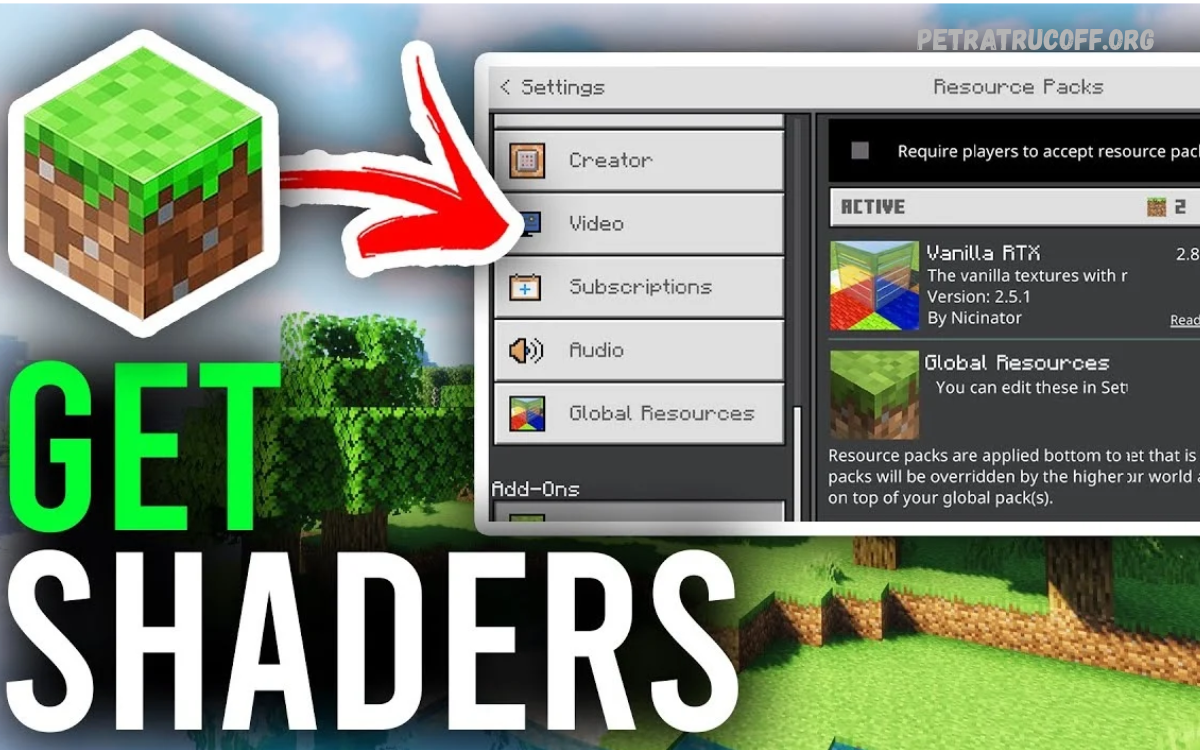
Minecraft shaders transform the familiar block-based world into a visually impressive environment with realistic lighting, soft shadows, reflective water, moving leaves, and beautiful skies. This Minecraft Shaders Guide explains shader types, installation methods, performance settings, and compatibility considerations for different devices.
Whether you play Minecraft Java Edition on PC or Minecraft Bedrock Edition on a supported device, choosing the right visual enhancements can improve your experience. Learn how to select shaders, install compatible files, adjust graphics settings, and enjoy a more immersive Minecraft world.
What Are Minecraft Shaders?
Minecraft shaders are visual enhancements that change how the game renders lighting, shadows, water, reflections, clouds, and other environmental effects. Depending on the shader pack, these changes can make forests appear more vibrant, oceans look more realistic, and sunsets create beautiful colors across the landscape.
Shaders do not normally change Minecraft’s core gameplay, crafting recipes, or survival mechanics. Instead, they focus on graphics and atmosphere, allowing players to customize the game’s appearance. Some packs prioritize realism, while others offer colorful visuals, cinematic effects, or improved lighting with relatively low performance costs.
Why Use Minecraft Shaders?
Shaders give players greater control over Minecraft’s visual style. Realistic sunlight, dynamic shadows, glowing lava, improved water transparency, and atmospheric fog can make familiar locations feel different. Builders can use these effects to showcase impressive structures, while explorers can enjoy more detailed landscapes and dramatic weather.
Another benefit is visual customization. Players can select shader packs according to personal preferences, hardware capabilities, and gameplay requirements. Lightweight shaders may provide subtle improvements without a major performance impact, while advanced packs deliver more sophisticated effects for capable computers.
Types of Minecraft Shaders
Realistic Minecraft Shaders
Realistic shaders aim to create natural lighting, detailed shadows, reflective surfaces, and atmospheric environments. Many packs feature sunrises, sunsets, water reflections, volumetric clouds, and changing light conditions. These effects can make Minecraft resemble a cinematic landscape while preserving its recognizable block-based design.
However, realistic shaders often require stronger graphics hardware, particularly when using high resolutions or advanced rendering effects. Players with powerful computers can experiment with detailed presets, while those with entry-level systems should select optimized versions and reduce demanding settings.
Lightweight Minecraft Shaders
Lightweight shaders focus on improving Minecraft’s appearance without placing excessive demands on system resources. Common enhancements include smoother lighting, attractive colors, subtle shadows, and improved skies. These packs are useful for players who want better visuals while maintaining responsive movement and enjoyable gameplay.
Low-performance systems may benefit from reduced shadow quality, limited reflection effects, and simpler cloud rendering. Actual results depend on the graphics processor, processor, available memory, game version, and other installed modifications, so testing different presets remains important.
Cartoon and Vibrant Shaders
Cartoon shaders create a colorful appearance through brighter environments, stylized lighting, softer shadows, and enhanced color palettes. These packs are suitable for players who prefer an artistic Minecraft world rather than highly realistic graphics.
Vibrant shaders can also make screenshots and building showcases more attractive. Their performance requirements vary, so players should review individual pack descriptions and test recommended settings before using them in large worlds or multiplayer sessions.
Cinematic Minecraft Shaders
Cinematic shaders emphasize atmosphere, dramatic lighting, detailed skies, and visually striking landscapes. They are especially useful for recording gameplay videos, capturing screenshots, creating cinematic tours, and presenting architectural projects.
Some cinematic packs include depth-of-field effects, motion blur, lens effects, and other post-processing features. These options may reduce visibility or affect performance during normal gameplay, so disable unnecessary effects when prioritizing clear movement and competitive play.
Minecraft Shaders Guide for Java Edition
Minecraft Java Edition offers a broad selection of shader packs through compatible rendering tools and community-developed projects. Many players use Iris Shaders for shader support, while OptiFine is another established option for compatible Minecraft versions. The appropriate choice depends on the game version, installed modifications, and shader pack requirements.
Before installing anything, identify your exact Minecraft version and read the shader pack’s compatibility notes. Some packs require specific rendering features, graphics capabilities, or additional modifications. Download files from reputable project pages, and back up important worlds before changing your installation.
How to Install Minecraft Shaders on Java Edition
The installation process depends on the rendering tool you choose, but the general steps are straightforward. First, install a compatible shader loader, such as Iris, following its official instructions. Launch the appropriate Minecraft installation once to create the required game folders, then close the game before adding shader files.
Download a shader pack that supports your Minecraft version and place its ZIP file in the designated shaderpacks folder. You usually do not need to extract the ZIP archive. Restart Minecraft, open the video settings, locate the shader selection menu, and activate your preferred pack if it appears in the list.
How to Install Minecraft Shaders Using Iris
Iris is a popular shader solution for Minecraft Java Edition, particularly among players using Fabric-based mod installations. It supports many shader packs and can work alongside compatible performance modifications, including Sodium. Always verify compatibility between the Minecraft version, loader, mods, and shader pack before installation.
Download Iris from its official project website and follow the installer instructions for your operating system. Launch the generated Minecraft profile, open the video settings, and locate the shader menu. Select a compatible shader pack to activate it, then adjust visual options to balance appearance and performance.
How to Install Minecraft Shaders Using OptiFine
OptiFine has historically provided shader support alongside additional graphics options for Minecraft Java Edition. It may be suitable for players who prefer its configuration interface or use shader packs designed for supported OptiFine versions. However, compatibility varies, and some modern mod combinations work better with other rendering solutions.
Download OptiFine only from its official website and select a version matching your Minecraft installation. Follow the project’s installation instructions, launch the compatible profile, and open Video Settings to find the shader controls. If a shader fails to load, check version compatibility, graphics support, and conflicting modifications.
Minecraft Shaders for Bedrock Edition
Minecraft Bedrock Edition uses a different rendering system from Java Edition, so shader installation methods are not interchangeable. Traditional Java shader packs generally cannot be installed directly into Bedrock Edition. Visual enhancement options depend on the device, game version, rendering support, and the specific resource pack or graphics feature being used.
Some compatible Bedrock environments support enhanced graphics through Minecraft’s Vibrant Visuals features or other officially supported options. Availability may vary by platform and version. Before downloading a third-party pack, confirm that it explicitly supports your device and current Bedrock release, and follow the installation instructions provided by its developer.
Read Also: Best Roblox Roleplay Games for Every Player
Best Settings for Minecraft Shaders
Choosing the right settings can improve visual quality without making Minecraft difficult to play. Start with a moderate shader preset, enable shadows if performance allows, and use balanced lighting and water effects. Adjust render distance gradually instead of selecting the highest possible value immediately.
If the game becomes slow, lower shadow resolution, reduce volumetric lighting, disable depth of field, and decrease reflection quality. You can also reduce render distance or use a lighter shader preset. Change one setting at a time to identify which options provide the best balance between appearance and responsiveness.
How to Improve FPS With Minecraft Shaders
Shader performance depends on several factors, including graphics hardware, processor speed, game resolution, rendering distance, and shader complexity. Close unnecessary applications, update graphics drivers through the appropriate official source, and avoid combining incompatible rendering modifications. A lower resolution can also reduce graphics processing demands.
Consider using an optimized shader pack and a compatible performance mod where supported. Reduce particle effects, shadow quality, and demanding atmospheric features if frame rates remain low. Monitor performance in a representative world, because large forests, complex builds, and heavily modified environments may perform differently from simple test areas.
Minecraft Shaders for Low-End PCs
Players using low-end computers should prioritize lightweight shader packs designed for modest hardware. Look for options with simplified lighting, limited shadows, minimal reflections, and low-cost atmospheric effects. Avoid assuming that every pack labeled as optimized will perform equally well on all systems.
Start with low graphics settings and a short render distance, then activate a lightweight shader to evaluate performance. Increase settings gradually until the game begins to feel less responsive. If performance remains poor, consider playing without shaders or using basic visual enhancements instead of forcing demanding effects.
Minecraft Shaders for High-End PCs
Powerful gaming computers can support more advanced shader effects, including detailed shadows, realistic water, volumetric clouds, improved reflections, and sophisticated lighting. A high-end graphics card provides more room for experimentation, although performance still depends on the selected shader, resolution, and Minecraft configuration.
Begin with the shader’s recommended preset before increasing individual options. Higher shadow resolution and longer render distances can significantly increase processing demands. If you play at 1440p or 4K resolution, test each preset carefully and prioritize stable performance over settings that offer only small visual improvements.
Common Minecraft Shader Problems and Fixes
One common problem is a shader pack that does not appear in the selection menu. This may happen when the file is placed in the wrong folder, extracted unnecessarily, or designed for an incompatible game version. Confirm the shaderpacks directory, restart the game, and check the pack’s installation requirements.
Crashes, black screens, missing shadows, and visual glitches may indicate unsupported graphics features or conflicting modifications. Update compatible components, remove conflicting additions, and test another shader pack. If the problem continues, temporarily disable shaders and consult the official documentation for your rendering tool and the shader developer’s troubleshooting instructions.
Minecraft Shaders and Resource Packs
Shaders and resource packs serve different purposes, although players often combine them to customize Minecraft. Shader packs primarily affect lighting, shadows, reflections, and rendering effects, while resource packs change textures, sounds, models, and certain interface elements.
Using both can create a coordinated visual style, such as realistic lighting combined with detailed block textures. However, high-resolution resource packs can increase memory and graphics demands, especially when paired with advanced shaders. Install compatible files, test them individually, and keep backups of important game worlds.
Are Minecraft Shaders Safe to Download?
Shaders are generally distributed as downloadable files, so the source matters. Prefer official developer websites, trusted project repositories, and established community platforms. Avoid unfamiliar download buttons, suspicious installers, password-protected archives from untrusted sources, and websites that request unnecessary personal information.
Before installing a pack, review its documentation, supported versions, and community feedback. Scan downloaded files with appropriate security software and avoid running executable files that a shader pack does not reasonably require. Keeping a backup of your Minecraft worlds also helps protect your progress while testing modifications.
Minecraft Shaders for Screenshots and Videos
Shaders can improve the presentation of Minecraft screenshots and videos by adding atmospheric lighting, reflective water, detailed skies, and softer shadows. Builders can use different times of day to highlight architectural features, while landscape creators can capture mountains, forests, and oceans under distinctive lighting conditions.
For recording, select settings that maintain stable gameplay and avoid excessive visual effects. Test camera movement, lighting transitions, and scene visibility before capturing long videos. If your computer struggles during recording, lower shader quality or use a simpler preset to maintain a smooth experience.
How to Choose the Right Minecraft Shader Pack
The best shader pack depends on your device, preferred art style, Minecraft edition, and intended use. Players who enjoy exploration may prefer natural lighting and attractive landscapes, while builders may prioritize shadows and reflections. Competitive players often benefit from simpler visuals that maintain clear visibility and responsive gameplay.
Read the shader’s official description and check its supported game versions before downloading. Look for performance information, installation requirements, available presets, and known compatibility limitations. Testing two or three suitable packs can help you identify the option that delivers your preferred appearance without unnecessary performance costs.
Frequently Asked Questions
What Is the Best Minecraft Shader?
There is no single best shader for every player. The right option depends on your graphics hardware, Minecraft version, preferred visual style, and performance expectations. Compare compatible packs, review their requirements, and test their default presets before making a final choice.
Are Minecraft Shaders Free?
Many popular Minecraft shader packs are available free of charge, although licensing terms differ between projects. Check the developer’s official page for usage conditions, redistribution rules, and any optional paid features. Avoid unauthorized copies or downloads from suspicious websites.
Do Minecraft Shaders Reduce FPS?
Shaders can reduce frame rates because advanced lighting, shadows, reflections, and atmospheric effects require additional processing. Lightweight packs may have a smaller impact, while realistic presets can be demanding. Lowering graphics settings or selecting an optimized shader can help improve performance.
Can I Use Java Shaders on Bedrock Edition?
Traditional Java shader packs are not generally compatible with Bedrock Edition because the editions use different rendering systems. Bedrock players should look for graphics features and resource packs designed for their specific platform and version, including supported Vibrant Visuals options where available.
Do Minecraft Shaders Require a Graphics Card?
A dedicated graphics card is not always required to launch Minecraft, but advanced shaders often benefit from capable graphics hardware. Integrated graphics may handle some lightweight packs, depending on the system. Check shader requirements and test performance before choosing demanding visual effects.
How Do I Remove Minecraft Shaders?
To remove a shader, open Minecraft’s video settings and select the default graphics option or disable the active shader. You can then remove the shader ZIP file from the shaderpacks folder if you no longer need it. Keep other game files intact unless the relevant documentation says otherwise.
Conclusion
This Minecraft Shaders Guide covers shader types, installation methods, performance improvements, compatibility, troubleshooting, and visual customization.
Start with a trusted shader pack designed for your Minecraft edition and game version. Test the default settings, gradually adjust demanding effects, and choose the visual style that best matches your device and preferences.

1 comentario
Pingback: Minecraft Survival Base Design: Best Ideas, Layouts, and Building Tips - PetraTrucoff