

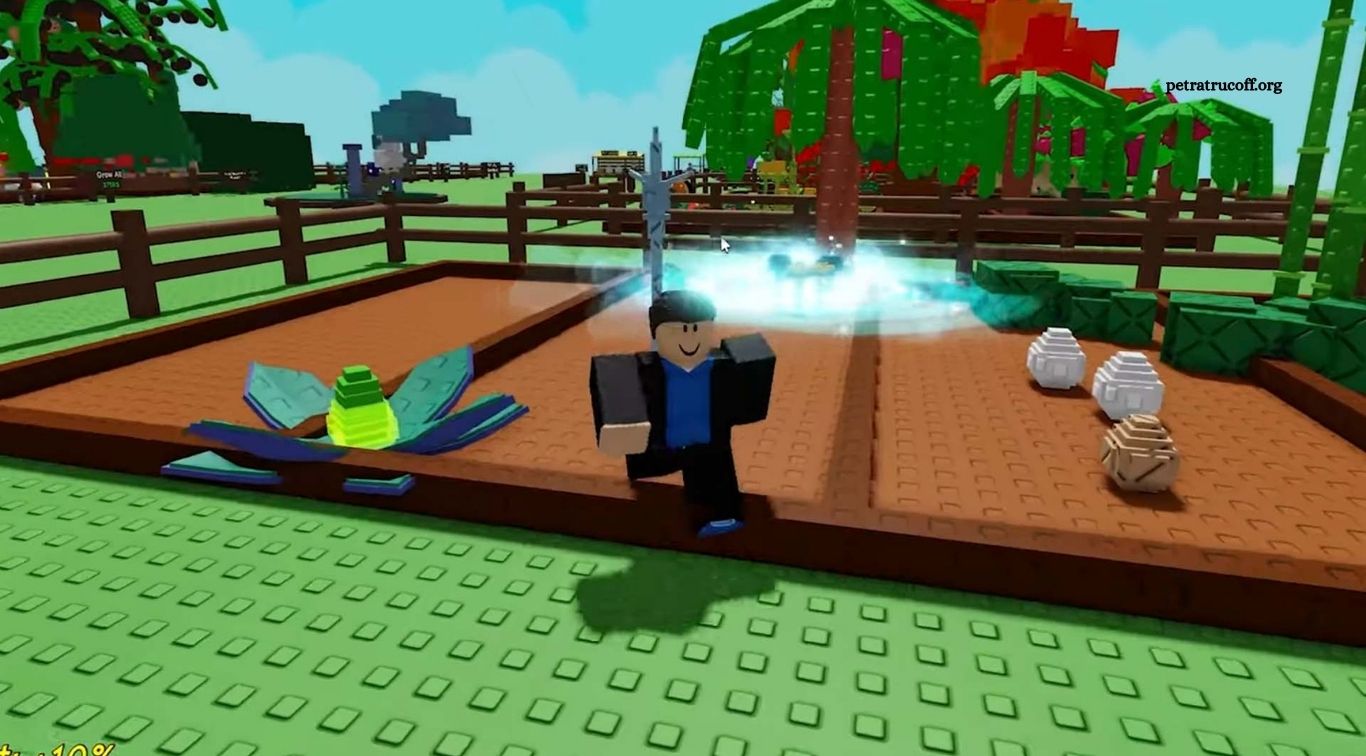
Roblox offers thousands of games, from competitive action experiences to creative building simulators and immersive roleplay adventures. However, the quality of your gameplay depends on more than the game itself. Adjusting the right Roblox settings can help improve performance, make controls easier to use, reduce distractions, and create a smoother gaming experience on computers, mobile devices, and consoles.
Many players use the default settings without realizing that small changes can make gameplay more comfortable and responsive. Graphics quality, camera controls, movement options, sound levels, and privacy settings can all affect how you play. This guide explains the most useful Roblox settings to adjust, how they can help, and which options are worth testing for your preferred games and device.
Read More: Best Roblox Simulator Games Ranked
Adjust Graphics Quality for Smoother Performance
Graphics quality is one of the most important settings to check when Roblox feels slow or runs with frequent frame drops. On supported devices, you can open the in-game menu, navigate to Settings, and change Graphics Mode from Automatic to Manual. You can then lower the Graphics Quality slider to reduce the amount of visual detail the game needs to render. This may improve performance on older computers, budget laptops, and mobile devices.
If your device runs Roblox smoothly, you can experiment with higher graphics quality for better lighting, textures, and visual details. However, higher settings can increase the load on your graphics hardware and may cause overheating or reduced frame rates on less powerful devices. Start with a moderate setting, test it in a busy game, and adjust gradually until you find a balance between visual quality and consistent performance.
Choose the Right Camera Settings
Camera settings can make a significant difference in games that involve exploration, precise movement, racing, or combat. Roblox experiences may offer different camera modes, including Classic and Follow, depending on the game and its available controls. Classic mode gives you more direct control over the camera, while Follow mode can keep the view aligned with your character’s movement. Try both options to see which feels more natural.
Camera sensitivity and related options may also be available within individual experiences, especially in games with aiming or first-person mechanics. If the camera moves too quickly, lower the sensitivity where the game allows it. If turning feels slow, increase it gradually. A comfortable camera setup makes it easier to track opponents, navigate obstacles, and maintain awareness without constantly correcting your view.
Customize Controls for Better Movement
Comfortable controls can help you react more quickly and make character movement easier to manage. On a computer, Roblox commonly uses the keyboard and mouse for movement, interaction, and camera control, while mobile players rely on touch controls and console players use a controller. Some experiences allow additional customization, such as changing key bindings, adjusting sensitivity, or modifying control layouts.
Choose controls that feel natural for the activities you perform most often. In an obstacle course, you may prefer easy access to jump and movement commands. In a competitive action game, consistent mouse or controller sensitivity may be more important. If a game offers custom controls, test changes in a low-pressure area before using them in competitive matches. Not every Roblox experience supports the same control options.
Use Full-Screen Mode on PC
Playing Roblox in full-screen mode can make the experience more immersive and reduce distractions from other desktop windows. On supported Windows setups, you can often toggle full-screen mode using the game’s available shortcut or display controls. A larger, uninterrupted view may make it easier to notice important details and focus on gameplay, especially in exploration and action experiences.
Full-screen mode does not automatically increase frame rates, and its effect on performance depends on the device, operating system, graphics settings, and display configuration. If you frequently switch between Roblox and other applications, windowed mode may be more convenient. Test both modes and choose the one that offers the best combination of responsiveness, visibility, and ease of use on your computer.
Optimize Sound Settings for Clearer Audio
Sound helps players notice important events, follow instructions, and enjoy the atmosphere of a Roblox experience. Adjust the in-game volume to a comfortable level so that dialogue, alerts, and gameplay effects remain clear without becoming distracting. Some experiences provide separate sliders for music, sound effects, or voice communication, while others only offer basic volume controls.
For games where audio cues matter, reducing background music may make footsteps, alarms, or other effects easier to hear. Headphones can also help you distinguish sounds when a game supports useful directional audio. Avoid setting the volume so high that it becomes uncomfortable, and check your device’s sound output if audio seems distorted. The best sound settings depend on the game, your equipment, and your personal preferences.
Improve Mouse Sensitivity and Camera Responsiveness
Mouse sensitivity affects how far the camera or aiming reticle moves when you move your mouse. In games that support aiming, shooting, or precise camera control, a sensitivity level that is too high can make small adjustments difficult. A setting that is too low may force you to move the mouse excessively. Testing different values can help you find a consistent level that feels comfortable and controllable.
Some sensitivity options are controlled by the individual Roblox experience rather than Roblox’s main settings menu. Start with a moderate value, practice tracking moving targets, and make small adjustments instead of changing everything at once. If you use a gaming mouse, also check its DPI settings because they influence cursor movement alongside in-game sensitivity. Consistency matters more than copying another player’s exact setup.
Manage Mobile Graphics and Touch Controls
Roblox mobile players can improve gameplay by balancing graphics quality with device performance. If a game stutters, heats up the phone, or drains the battery quickly, try lowering graphics quality through the in-game settings where manual adjustment is available. Closing demanding background applications and keeping the device updated may also help, although results vary depending on the phone, operating system, and game.
Touch controls deserve equal attention because screen size and hand position affect comfort. Keep movement and action controls easy to reach, and check whether the experience offers adjustable button placement or alternative control modes. Avoid covering important parts of the screen with your fingers, particularly in games that require quick reactions. If performance becomes worse during long sessions, allow the device to cool and avoid playing while it is overheating.
Check Network Performance and Reduce Lag
Network lag can make Roblox characters appear to teleport, delay actions, or respond inconsistently. These problems are different from low frame rates: a game can look smooth while online actions still feel delayed. If possible, use a stable internet connection, move closer to your Wi-Fi router, or try a wired Ethernet connection on a compatible computer. Pause large downloads or other bandwidth-heavy activities when they interfere with gameplay.
Roblox performance can also be affected by server conditions, the distance between your device and the game server, and problems with your internet provider. Lowering graphics quality may help with visual stuttering, but it will not fix every network issue. If only one experience has problems, the server or game itself may be responsible. Compare performance across different experiences before deciding whether the issue comes from your device or connection.
Enable Useful Accessibility Settings
Accessibility settings can make Roblox more comfortable for players with different visual, hearing, and motor needs. Depending on the device and experience, useful options may include system-level text scaling, screen magnification, captions, reduced motion settings, or alternative input devices. Individual Roblox experiences may also provide their own accessibility features, so it is worth reviewing the settings menu before playing.
Choose options that make information easier to see and controls easier to use without creating unnecessary visual clutter. If small text is difficult to read, adjust your device’s display settings where supported. If motion effects cause discomfort, check for reduced-motion options in the operating system or the individual game. Accessibility features vary, so the exact choices available will depend on your platform and the experience you are playing.
Configure Privacy and Communication Settings
Good Roblox settings should protect your account and help you control interactions with other players. Review your privacy and communication options to manage who can message you, chat with you, invite you to experiences, or interact with you in other supported ways. The available controls can vary by account, age, region, and Roblox’s current safety features.
Use strong, unique account credentials and enable two-step verification where available. Never share your password, verification codes, or private information with other players, even if they claim to offer free items or special advantages. If someone behaves inappropriately, use Roblox’s reporting and blocking features. Privacy settings do not directly increase frame rates, but they can make online gameplay safer and more comfortable.
Keep Roblox and Your Device Updated
Updates can improve compatibility, fix bugs, and address security problems that affect gameplay. Keep the Roblox application and your device’s operating system up to date through their official update channels. On computers, maintaining supported graphics drivers can also help resolve some display problems, particularly when a game begins crashing or rendering incorrectly after a system update.
Before troubleshooting, check whether the problem occurs in one experience or across Roblox as a whole. Restarting the application and device can resolve temporary issues, while checking available storage and closing unnecessary applications may help on resource-limited devices. Avoid unofficial Roblox clients or tools that promise unrealistic performance improvements. Such downloads can compromise your account or device and may violate Roblox’s rules.
Best Roblox Settings for Different Devices
The ideal setup depends on your hardware and the type of experience you play. On a lower-powered computer, moderate or low graphics quality, comfortable mouse sensitivity, and fewer background applications may help maintain smoother performance. A powerful gaming PC may handle higher graphics settings, while still benefiting from a stable connection and controls suited to the game.
On mobile devices, prioritize a balance between visual quality, temperature, battery life, and comfortable touch controls. Console players should focus on controller comfort, camera options, display settings, and network stability. There is no single configuration that works best for every Roblox experience. Test your settings in the games you play most often, change one option at a time, and keep the setup that feels most responsive and reliable.
Frequently Asked Questions
Which Roblox settings improve gameplay the most?
Graphics quality, camera settings, controls, and network stability are useful starting points. The best combination depends on your device and the experience.
How do I reduce lag in Roblox?
Lower graphics quality if frame rates are poor, use a stable internet connection, and close unnecessary background applications. Network lag may require different troubleshooting.
Should I use low graphics quality?
Low graphics quality can help on less powerful devices. If your device runs smoothly, you can raise it for improved visual detail.
Does full-screen mode increase FPS?
Not always. Performance depends on your device, operating system, graphics settings, and how the game is rendered.
What is the best Roblox camera mode?
Classic and Follow modes suit different preferences. Test both and use the one that gives you better control in your preferred games.
Can settings improve Roblox on mobile?
Yes. Adjusting graphics quality, optimizing touch controls, and reducing background activity may improve the experience on supported devices.
Are third-party Roblox FPS boosters safe?
Be cautious. Unofficial tools can pose security risks or violate Roblox rules. Prefer supported settings and official troubleshooting methods.
Conclusion
Roblox settings can make gameplay smoother, more comfortable, and easier to control when they are matched to your device and preferred experiences. Adjusting graphics quality, camera behavior, mouse sensitivity, sound, and controls can improve how a game feels, while network troubleshooting can help address connection-related problems. Mobile and console players can also benefit from reviewing their available device and game settings. The best setup is not necessarily the one with the highest graphics or fastest sensitivity.
