

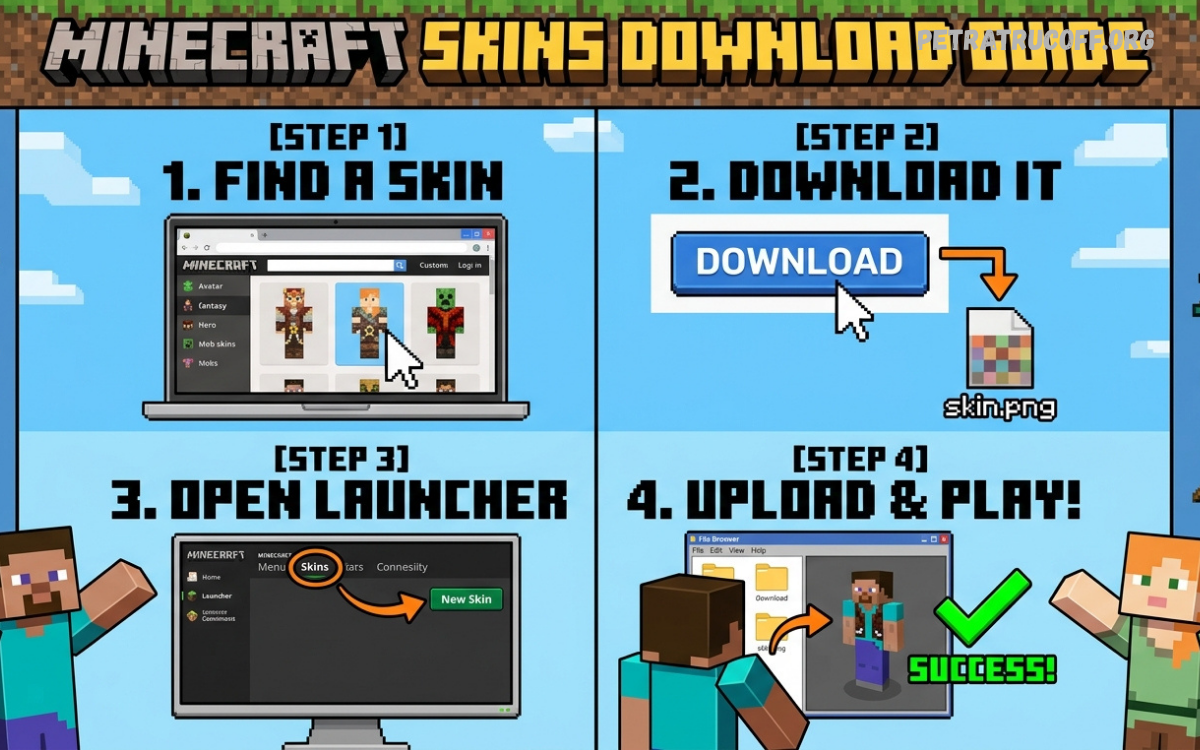
Minecraft offers players endless opportunities to express creativity through building, exploration, crafting, and character customization. One of the easiest ways to personalize your gaming experience is by changing your character’s appearance with custom skins.
Minecraft skins let players create unique identities using colorful outfits, fantasy characters, superheroes, animals, and original designs.
What Are Minecraft Skins?
Minecraft skins are image textures that change your in-game character’s appearance, commonly known as Steve or Alex. These textures add colors, clothing, hairstyles, accessories, and other visual details while preserving the familiar block-shaped character design.
A skin usually doesn’t change gameplay mechanics, mining speed, combat abilities, or building features. Instead, it gives your character a personalized appearance that other players may recognize during multiplayer sessions, making skins a popular part of the Minecraft community.
Why Minecraft Skins Are Popular
Minecraft skins allow players to express their personalities and creative interests through their characters. Some players prefer simple outfits, while others choose fantasy warriors, futuristic explorers, animals, or original designs that match their favorite themes.
Another reason for their popularity is the enormous variety of community-created skins available online. Players can discover new designs, create their own appearances, and update their characters whenever they want a different look for survival worlds, creative projects, or multiplayer adventures.
Understanding Minecraft Skin Types
Minecraft skins commonly use a pixel-based texture that wraps around a three-dimensional character model. The standard format includes separate areas for the head, body, arms, and legs, allowing designers to create detailed appearances using small colored squares.
Two common character models are the classic model, often called Steve, and the slimmer model, commonly called Alex. These models have different arm widths, so selecting the appropriate model when downloading or creating a skin helps prevent unexpected visual results.
Minecraft Skins Download Guide for Beginners
Beginners should start by deciding which character style they want before downloading a skin. Popular choices include casual clothing, gaming-inspired outfits, fantasy characters, cute animals, futuristic armor, and simple designs that remain easy to recognize during gameplay.
After choosing a design, select a trustworthy skin website or use Minecraft’s built-in customization options. Check the available file format, edition compatibility, and installation instructions before proceeding, because the correct method depends on your device and Minecraft version.
Best Places to Find Minecraft Skins
Several community websites provide collections of Minecraft skins created by independent designers. Platforms such as NameMC and The Skindex allow users to explore different designs, search by theme, and discover character appearances shared by other Minecraft players.
You can also explore the official Minecraft Marketplace in supported Bedrock Edition versions. Marketplace content may include free and paid customization items, so check the listing details before selecting a skin or purchasing a character-related pack.
How to Download Minecraft Skins Safely
Start by visiting a reputable skin platform and searching for a design that matches your preferred style. Open the skin’s individual page, review its preview, and locate the download option that provides a standard PNG image when available.
Before saving a file, check that the download matches the skin shown in the preview and does not require unnecessary software installation. Avoid suspicious download buttons, unknown executable files, and websites that request passwords or account credentials merely to provide a skin image.
How to Download Minecraft Skins on PC
PC players can download compatible skins through a browser and save the image to an easily accessible folder. For Java Edition, a standard skin image is generally supplied as a PNG file, which can be uploaded through the Minecraft Launcher’s skin management interface.
Bedrock Edition on Windows supports different customization methods, depending on the version and available interface. Use the Dressing Room or character customization options where appropriate, and follow the supported import process if your version offers custom skin imports.
How to Install Skins in Minecraft Java Edition
Open the Minecraft Launcher and select Java Edition from the available game options. Navigate to the Skins section, where you can create a new skin profile, choose a name, select the character model, and locate the downloaded PNG image on your computer.
Save the skin profile and select it before launching the game. Enter a world to check the result, and confirm that the arms, clothing, and other visible details look correct; if the appearance seems unusual, verify the model selection and image format.
How to Change Skins in Minecraft Bedrock Edition
Bedrock Edition provides character customization through the Dressing Room on supported platforms. Open Minecraft, select the Dressing Room, and choose an existing character or create a new one before exploring the available customization options.
The exact custom skin import process differs between Windows, mobile devices, and other supported platforms. If your version provides an import option, follow its instructions and select a compatible image; if importing is unavailable, use the officially supported customization features or Marketplace content.
Minecraft Skins Download Guide for Android
Android players can often download Minecraft skin images through a mobile browser. Visit a reputable skin website, choose a design, download its PNG image, and locate the file using your device’s Downloads folder or file manager.
Open Minecraft and check whether your installed version supports importing custom skins through the Dressing Room. If an import option is available, select the saved image and the appropriate model; otherwise, use the customization options supported by your current version.
How to Download Minecraft Skins on iPhone and iPad
On iPhone or iPad, use a trusted browser to find a skin and save its PNG image to the Files app or another accessible location. Confirm that the image has downloaded successfully before opening Minecraft and looking for the relevant character customization controls.
The available import features can vary according to the Minecraft version and platform restrictions. If direct importing is supported, follow the on-screen instructions; if it is not available, choose a compatible official skin or Marketplace item instead of installing untrusted third-party applications.
Can You Download Minecraft Skins on Consoles?
Console players can customize characters using the options supported by their particular Minecraft version. Xbox, PlayStation, and Nintendo Switch editions commonly provide access to built-in customization features and Marketplace content, although the exact selection depends on the platform.
Directly importing a downloaded PNG skin may not be supported on every console. Before attempting an unofficial workaround, check the game’s current settings and official support information, because unsupported methods may fail or introduce unnecessary security and account risks.
How to Change Your Minecraft Skin
Changing a skin usually involves opening the game’s skin management interface and selecting another available character appearance. In Java Edition, choose a different saved skin profile through the Launcher; in supported Bedrock versions, select the appropriate character in the Dressing Room.
After applying the new appearance, enter a world to confirm that the change is visible. If the old skin remains, check that you selected the correct profile, saved your changes, and allowed the game time to update the character appearance.
How to Create Your Own Minecraft Skin
Creating a custom skin is a great option when existing designs do not match your ideas. You can use a browser-based skin editor or a compatible image editor to customize the character’s face, hairstyle, clothing, shoes, and other texture details.
Begin with a standard Minecraft skin template and use the editor’s three-dimensional preview to understand where each part belongs. Save the finished design in the correct PNG format, choose the appropriate character model, and test it in Minecraft before sharing it with friends.
Best Minecraft Skin Ideas for Every Player
Fantasy skins remain popular among players who enjoy adventures, magical worlds, and role-playing experiences. Knights, wizards, dragons-inspired outfits, medieval explorers, and colorful mythical characters can complement themed builds without changing the game’s core mechanics.
Players who prefer modern designs can choose casual outfits, sports-inspired clothing, futuristic suits, or humorous characters. Simple designs are also useful for multiplayer sessions because recognizable colors and patterns make it easier to identify your character among other players.
Minecraft Skins for Multiplayer Servers
Custom skins can help players develop a recognizable identity on multiplayer servers. Friends may choose matching outfits for group adventures, while role-playing communities can use themed appearances to represent builders, explorers, merchants, or fictional characters.
However, server settings and moderation rules may affect how skins appear to other players. Some servers restrict particular designs, and certain clients or settings may display default characters instead of custom skins, so review the server rules and test your appearance before an important event.
How to Fix Minecraft Skin Download Problems
A skin may fail to appear because the image uses an unsupported format, the wrong character model was selected, or the installation process was incomplete. Confirm that the file is a valid PNG image, check the game’s supported dimensions, and repeat the upload using the correct profile.
If your character still displays the default appearance, restart the game and check your internet connection when online synchronization is required. Also confirm that you are signed into the intended account and that the chosen skin is actually selected rather than merely saved.
Why Your Minecraft Skin Is Not Showing
Sometimes a skin appears correctly in a customization menu but does not display as expected inside a world. Possible causes include connection problems, delayed synchronization, server restrictions, edition differences, or settings that limit the display of custom character appearances.
Try checking the skin in a different world and reviewing the available character settings. If the issue continues, consult official Minecraft support information for your platform and version, because the correct solution depends on whether the problem involves importing, account synchronization, or multiplayer display restrictions.
Are Minecraft Skins Free?
Many Minecraft skins are available free of charge through community websites and player-created collections. These designs can provide a wide range of appearances without requiring a purchase, although individual websites may have different terms for downloading, editing, or redistributing user-created content.
Official Marketplace content may include free items alongside paid skins and character packs. Always review the price and description before confirming a transaction, and remember that downloading a free skin should not require giving an unfamiliar website your Microsoft account password.
Minecraft Skins Download Guide: Free vs. Paid Skins
Free skins are useful for players who want to experiment with different styles without spending money. Community collections often include casual outfits, animals, fantasy characters, and many other designs, making it easy to find an appearance that suits your interests.
Paid skins and character packs may offer themed designs or additional customization features through the official Marketplace. The best choice depends on your preferences, platform, and budget, so compare the available options and avoid purchases that promise features the game does not actually support.
How to Choose a High-Quality Minecraft Skin
A good skin should match your preferred style while remaining visually clear in the game’s block-based environment. Look for balanced colors, readable patterns, and well-designed details that make sense on the head, body, arms, and legs rather than relying on complicated textures alone.
Check the skin preview from multiple angles before downloading it. A design that looks attractive from the front may have unfinished areas on the back or sides, so inspect the entire character model and choose the right arm configuration before installing.
Read Also: Dewacash and the Growing Trends in Digital Entertainment
Minecraft Skin Compatibility and File Formats
For many Java Edition custom skins, the standard PNG image format is used for importing character textures. Common modern skin layouts are 64 by 64 pixels, although older skin formats exist, so follow the requirements shown by your skin editor or Minecraft version.
A skin image is different from a mod, resource pack, or executable application. You generally don’t need to install a separate program to use a standard skin, and choosing the correct file type helps avoid unnecessary compatibility problems.
How to Share Minecraft Skins With Friends
If you create a skin yourself, you can share the image file with friends or provide a link to the page where the design is available. Before distributing someone else’s work, check the creator’s permissions and any licensing or attribution requirements attached to the design.
Friends using the same Minecraft edition may be able to follow similar installation steps, but platform support can differ. Explain whether the skin requires Java Edition, a supported Bedrock import feature, or a Marketplace item so others can determine whether they can use it.
Minecraft Skins and Account Security
Protecting your account is important when downloading customization content from the internet. Reputable skin resources generally provide image files or supported customization options, while suspicious websites may use fake download buttons to promote unwanted applications or collect personal information.
Never share your Microsoft account password or verification codes with an unofficial skin website. Use trusted sources, keep your device and game updated, and avoid downloading unknown files that claim to unlock premium skins, bypass purchases, or provide special account privileges.
Common Mistakes to Avoid When Downloading Minecraft Skins
One common mistake is choosing a skin for the wrong character model or downloading a file that is not a compatible texture image. Another is following installation instructions designed for a different Minecraft edition, which can cause confusion when the expected buttons are missing.
Players should also avoid assuming that every custom skin works on every device or multiplayer server. Check the platform requirements, use the supported import method, and review the full skin preview before spending time troubleshooting an issue caused by basic incompatibility.
Tips for Keeping Your Minecraft Skins Organized
Players who collect many skins can create folders to organize downloaded designs by theme, character type, or intended use. Descriptive filenames such as fantasy-knight or space-explorer make it easier to identify images without opening every file individually.
Keep original skin files in a separate folder so you can restore or reuse them later. If you edit a design, save a new copy instead of replacing the original, and periodically remove duplicate downloads to keep your collection organized and easy to manage.
The Future of Minecraft Skin Customization
Minecraft customization continues to provide opportunities for creative expression through community designs and supported in-game features. As the game evolves, players may encounter changes to customization interfaces, platform compatibility, and the ways different editions manage character appearances.
For the most reliable experience, follow official announcements and current platform-specific instructions rather than outdated tutorials. This approach helps you understand which skin features are available in your version and prevents confusion when menus or import options change after an update.
Frequently Asked Questions
How Do I Download Minecraft Skins for Free?
Visit a reputable Minecraft skin website, choose a design, and download its PNG image when available. Then follow the installation steps for your Minecraft edition and device to apply the skin to your character.
Can I Download Minecraft Skins on Android?
Yes, many Android players can download skin images using a mobile browser. Whether you can import the image directly depends on your Minecraft version, so check the Dressing Room for a supported custom skin import option.
Are Minecraft Skins Safe to Download?
Minecraft skins are generally straightforward image files, but the websites that host them can vary in safety. Use reputable sources, avoid suspicious software downloads, and never share your account password with unofficial skin websites.
Can I Use Custom Skins in Minecraft Java Edition?
Yes, Java Edition supports custom player skins through the Minecraft Launcher. Download a compatible PNG image, create or edit a skin profile, choose the appropriate character model, and select the skin before launching the game.
Can I Use Custom Skins in Minecraft Bedrock Edition?
Bedrock Edition offers character customization, but importing custom skins depends on your device and game version. Check whether your version supports importing skin images or use compatible content from the official Marketplace.
Why Is My Minecraft Skin Not Showing?
Your skin may not appear because of an incorrect file format, a model mismatch, a synchronization delay, or server restrictions. Check the skin settings, restart the game if needed, and contact platform-specific support if the issue persists.
Do Minecraft Skins Change Gameplay?
No, ordinary Minecraft skins change a character’s appearance rather than adding abilities. They do not normally improve health, speed, mining efficiency, combat performance, or access to special gameplay features.
Can I Create My Own Minecraft Skin?
Yes, you can design your own skin using a compatible skin editor or image editor. Customize the texture, preview your character from different angles, and export the image in the format supported by your Minecraft edition.
Can I Use the Same Skin on Every Device?
Not always. Skin compatibility and import methods vary between Java Edition, Bedrock Edition, and individual platforms, so you may need to apply the same design separately or use a supported account-based customization feature.
Are Minecraft Marketplace Skins Free?
Some Marketplace items are free, while others require payment. Review the listing carefully before downloading or purchasing content, and remember that many community-created skins are available separately at no cost.
Conclusion
This Minecraft Skins Download Guide covers the essential steps for finding, downloading, installing, creating, and changing character skins.
Choose trustworthy sources, check skin compatibility, and use official customization options whenever possible.

1 comentario
Pingback: Minecraft Building Hacks: Best Tips and Tricks for Better Builds - PetraTrucoff