

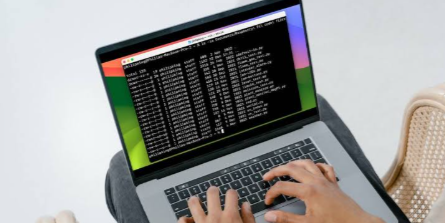
The Terminal is the plain black window most Mac owners never dare open, and that is a shame, because a handful of simple commands can save you real time and fix problems the mouse cannot reach. You do not need to be a programmer. Learn ten or so commands and you can move around your Mac faster, tidy files in bulk, and sort out issues that would otherwise mean a trip to a repair shop. Here are the ones that actually matter, explained in plain English.
What Is the Mac Terminal and Why Should You Use It?
The Terminal is a text-based way of giving your Mac instructions by typing instead of clicking. You find it in Applications, Utilities, or just search for it with Spotlight. Almost anything you do with a mouse has a typed equivalent here, and the typed version is often faster and more precise once you know it.
Working at the command line rewards a little patience. Every instruction follows the same simple shape: a command, sometimes an option, and often a target such as a file or folder. Type pwd and press Return, for example, and it prints the folder you are currently in. You do not need to memorise everything at once. Learn a few reliable commands, understand how they fit together, and you can add more whenever a new need comes up.
Essential Terminal Commands for Navigating Your Mac
Start by learning to move around, because everything else builds on it. Three commands cover the basics. Type pwd to see where you are, ls to list what is in the current folder, and cd followed by a folder name to move into it. To go back up one level, use cd .., and to jump straight home, just type cd on its own.
A few small additions make these far more useful. Type ls -la and you get a detailed list that includes hidden files and permissions, which the Finder keeps out of sight. If you ever get lost, open . opens your current Terminal location in a normal Finder window, bridging the two worlds neatly. Once these become second nature, you can reach any corner of your Mac in seconds, often faster than clicking through windows.
Managing Files and Folders from the Command Line
Once you can move around, file management becomes quick and flexible. Use mkdir to create a new folder, cp to copy a file, and mv to move or rename one, which is the same command for both. So mv old.txt new.txt simply renames the file. The real power comes from acting on many files at once using patterns, so mv *.jpg Photos/ moves every JPG into a Photos folder in a single line.
A serious word of caution goes with rm, the command that deletes files. Unlike dragging something to the Trash, rm removes it permanently with no safety net, and rm -rf on the wrong folder can wipe far more than you intended. Only ever use it when you are certain of the target, and double-check the path before you press Return. Used carefully it is brilliant, but it is the one command that genuinely demands respect.
Automating Tasks with a Simple Shell Script
Once you are comfortable with single commands, the next step is stringing them together, and this is where real time savings appear. A short shell script is just a plain text file containing several commands that run one after another when you launch it. A backup script might create a dated folder and copy your important files into it, turning a fiddly ten-minute chore into a single command.
You do not need to be a coder to benefit. Many useful scripts are only a few lines long, and you can adapt examples shared freely online to suit your needs. Save your commands in a file ending in .sh, make it runnable with chmod +x yourscript.sh, and run it with ./yourscript.sh. Start with something small and safe, like copying a folder to a backup location, and build confidence from there. Over time you may find yourself automating jobs you once dreaded.
Handy Terminal Commands for Maintenance and Troubleshooting
The Terminal is also excellent for keeping your Mac healthy. When something feels sluggish, type top to see which processes are using the most memory and processor power, then press q to quit the view. If an app is frozen, you can force it to quit by name, for example killall Safari, which is often quicker than hunting through menus.
A few more earn a place in your routine. Use du -sh * inside a folder to see what is eating your disk space, run softwareupdate -l to check for system updates from the keyboard, and caffeinate to stop your Mac sleeping during a long download. If the Finder or menu bar misbehaves, killall Finder restarts it cleanly without a full reboot. As always, understand what a command does before you run it, but used sensibly these are a reliable way to look after your machine.
Frequently Asked Questions
Is it safe for beginners to use the Mac Terminal?
Yes, as long as you understand each command before running it. Commands for navigating and listing files, like pwd, ls, and cd, are completely safe. The ones to respect are those that delete files or change system settings, since the Terminal skips the usual warnings. When in doubt, look a command up before you use it.
Do I need to know how to code to use the Terminal?
No. Most everyday Terminal use is single commands that are easy to learn and remember. Even basic automation through short scripts needs no formal programming, as you can adapt simple examples to your needs. A willingness to practise matters far more than any coding background.
What is the most dangerous Terminal command to avoid?
The one to handle with the most care is rm, especially rm -rf, which permanently deletes files and folders with no Trash to recover them from. Always check the path before running it. Beyond that, be cautious with any command that changes system settings, and never paste a command you found online without understanding what it does.
How do I remember all the Terminal commands?
You do not have to. Most people learn a small core they use often and look up the rest when needed. Keeping a short note of your favourites is a great habit, and the more you practise, the more naturally they come. The Terminal rewards gradual familiarity rather than memorising everything at once.
