

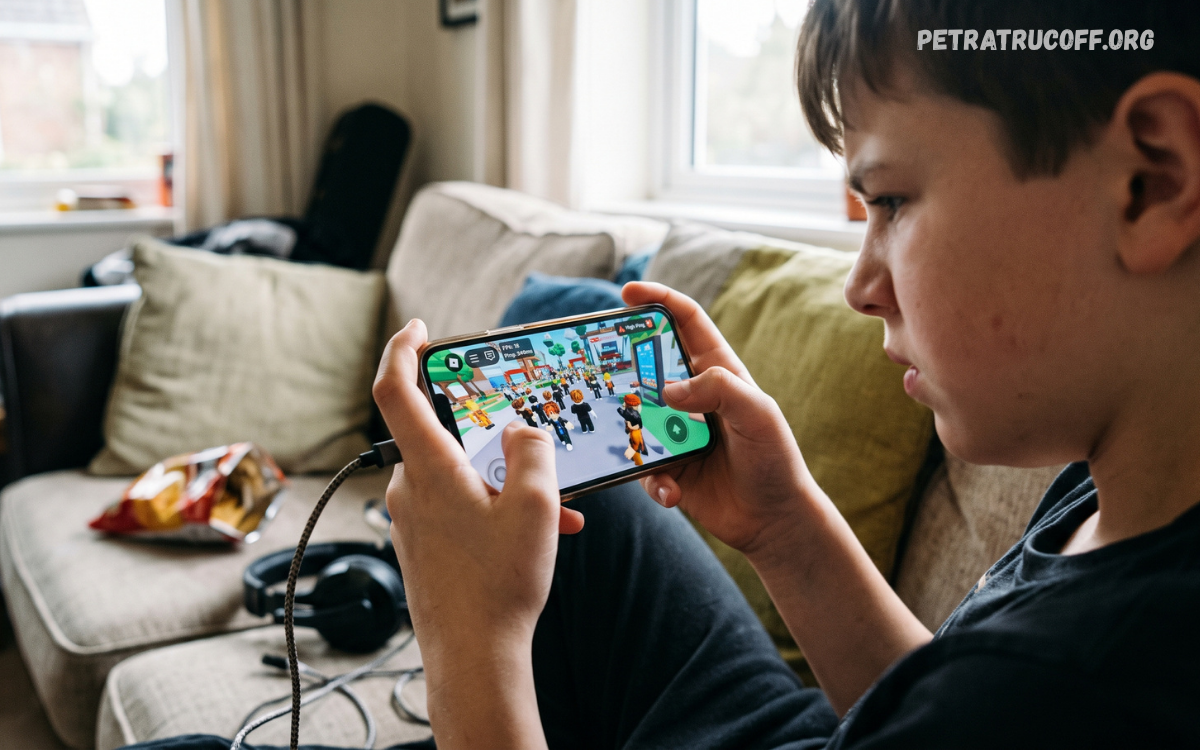
Roblox Mobile Performance plays a key role in delivering a smooth, enjoyable gaming experience on smartphones and tablets. Players expect responsive controls, stable frame rates, fast loading times, and uninterrupted gameplay as they explore different Roblox experiences.
Improving Roblox Mobile Performance doesn’t always require buying a new smartphone or installing extra apps. Simple adjustments to graphics quality, background activity, network settings, and device maintenance can make gameplay more consistent.
Understanding Roblox Mobile Performance
Roblox Mobile Performance describes how efficiently Roblox runs on mobile devices. Important factors include frame rate, graphics rendering, loading speed, touch responsiveness, connection stability, and overall gameplay consistency.
Different Roblox experiences place different demands on mobile hardware. A simple obstacle course may run smoothly on an entry-level smartphone, while a detailed multiplayer adventure may require more processing power and memory.
Common Causes of Roblox Mobile Lag
Lag can appear as delayed movement, interrupted animations, slow character responses, or sudden changes in gameplay speed. These symptoms may result from limited processing power, insufficient available memory, demanding graphics, or unstable internet connectivity.
Background applications, overheating, outdated software, and demanding game environments can also affect Roblox Mobile Performance. For example, a device running several resource-intensive applications may struggle to maintain consistent performance during gameplay.
Best Graphics Settings for Roblox Mobile
Graphics settings directly influence how Roblox looks and performs on a mobile device. Higher graphics quality can produce richer environments, improved visual details, and more attractive lighting effects, but these settings may increase the workload on the processor and graphics hardware. Lower graphics quality can reduce that workload and improve consistency on devices with limited resources.
Roblox offers graphics controls in supported experiences and app versions, although available options may vary. When manual graphics control is available, selecting a lower setting can help reduce stuttering and overheating.
Improving Frame Rate and Gameplay Smoothness
Frame rate affects how smoothly characters, camera movements, and animations appear on the screen. A consistent frame rate generally creates a more responsive experience, especially in competitive games that require accurate movement and quick reactions.
To improve frame-rate consistency, reduce demanding graphics settings, close unnecessary background applications, and avoid playing while the device is overheating. Keeping the operating system and Roblox application updated can also help address compatibility problems and software-related issues.
Internet Connection and Roblox Mobile Performance
A stable internet connection is essential for multiplayer Roblox experiences. Weak Wi-Fi signals, network congestion, high latency, and temporary service disruptions can cause delayed interactions, teleporting characters, and difficulty synchronizing with other players. These symptoms may resemble device lag, but changing graphics settings alone will not resolve a network problem.
For a more reliable connection, play near the Wi-Fi router or use a stable mobile data connection when appropriate. Pause large downloads and streaming activities on the same network when possible. Switching between Wi-Fi and mobile data may help identify connection-related problems, although performance will depend on local coverage, network congestion, and the quality of the available connection.
Optimizing Android Devices for Roblox
Android smartphones come with different processors, graphics hardware, memory capacities, and software configurations. These differences influence how efficiently Roblox runs across devices. Optimizing an Android phone starts with keeping the system updated, maintaining sufficient free storage, and closing applications that consume significant resources during gameplay.
Players can also check whether their device offers a gaming mode or performance profile. Depending on the manufacturer, these features may prioritize game performance, manage notifications, or limit selected background activities. Avoid disabling essential system services or using unfamiliar optimization applications that promise unrealistic improvements, as these approaches can introduce security risks or create additional performance problems.
Optimizing Roblox on iPhone and iPad
Apple mobile devices can provide smooth Roblox gameplay when the game, operating system, and graphics settings are suitable for the hardware. However, performance still varies between device generations and individual Roblox experiences. Older devices may experience greater difficulty with detailed environments, particularly when several applications remain active or the device becomes warm.
For better results, install available stable software updates, close unnecessary resource-intensive applications, and allow the device to cool if performance begins to decline. Check available storage and review battery-related settings when gameplay appears unusually slow. Low Power Mode can limit performance on some devices, so comparing gameplay with this mode enabled and disabled may help identify its effect.
Managing Device Temperature During Gameplay
Heat can significantly affect Roblox Mobile Performance. When a smartphone becomes too warm, its internal thermal management system may reduce processing speeds to protect the hardware. This can result in lower frame rates, inconsistent performance, or a noticeable decline in responsiveness during longer gaming sessions.
To manage temperature, avoid direct sunlight, remove heavy insulating cases when appropriate, and take breaks if the device becomes unusually hot. Charging while playing demanding games can increase heat on some devices, so reducing simultaneous charging and gaming may help. Never place a hot device in a refrigerator or freezer, because sudden temperature changes and condensation can damage its components.
Freeing Storage Space for Better Performance
Available storage can influence app updates, temporary files, and general device operation. When a smartphone has very little free space, software maintenance and other everyday tasks may become less convenient. Although additional storage does not automatically increase gaming frame rates, maintaining adequate free space can help prevent storage-related problems.
Review downloaded videos, unused applications, duplicate files, and other unnecessary content to identify items that can safely be removed. Use built-in storage management tools rather than unfamiliar cleaning applications. Avoid deleting unfamiliar system files or clearing Roblox data without understanding the consequences, because some actions may remove local settings or require you to sign in again.
Keeping Roblox Updated
Updates can add bug fixes, compatibility improvements, security changes, and new features. Running an outdated version may contribute to unexpected errors or prevent access to certain experiences. Keeping Roblox updated is therefore an important part of maintaining reliable mobile gameplay.
Install Roblox updates through your device’s official app store and use a supported operating system whenever possible. Check update descriptions when performance changes after an installation, since individual releases can affect devices differently.
Read Also: Roblox Update Problems: Common Causes and How to Fix Them
Choosing Roblox Experiences for Your Device
Not every Roblox experience has the same performance requirements. Some games feature large multiplayer environments, detailed textures, advanced effects, and numerous moving objects, while others use simpler designs. These differences can significantly influence loading times, memory usage, and frame-rate consistency on mobile hardware.
If one experience runs poorly, try another game to determine whether the issue affects Roblox generally or only a specific environment. Consistently smooth performance in simpler experiences suggests that the demanding game may exceed your device’s practical capabilities. Choosing experiences that run comfortably on your hardware can provide a better gaming experience without unnecessary software changes.
Improving Touch Controls and Responsiveness
Responsive touch controls help players move accurately, change camera angles, and interact with objects. Control difficulties may arise from screen sensitivity, crowded interface elements, accidental touches, or temporary performance drops. In fast-paced Roblox experiences, even small delays can make actions feel less precise.
Explore the available control and sensitivity options within individual games to find a comfortable arrangement. Keep the screen clean, avoid covering important touch areas, and close overlays that interfere with gameplay when safe to do so. If controls remain delayed, compare performance in another experience and check whether the problem relates to device responsiveness, frame-rate drops, or network latency.
Battery Settings and Gaming Performance
Battery-saving features can reduce background activity and limit selected performance characteristics to extend battery life. These adjustments are useful during everyday mobile use, but they may affect gaming smoothness on certain devices. The exact impact depends on the manufacturer, operating system, battery condition, and active power settings.
When Roblox feels unusually slow, check whether a battery-saving mode is enabled and compare performance under normal settings if the device has sufficient charge. Avoid forcing the processor beyond manufacturer limits or installing applications that promise extreme performance boosts. A balanced configuration that maintains reasonable temperatures and stable gameplay is generally more useful than maximizing performance at any cost.
Safe Methods for Reducing Roblox Lag
Safe optimization focuses on settings and maintenance features already provided by the device and Roblox. Lower graphics quality, stable connectivity, adequate storage, updated software, and sensible background activity management are practical starting points. These measures help players address common causes of lag without compromising account security or device reliability.
Avoid modified Roblox apps, unofficial performance patches, suspicious configuration files, and services that ask for your account credentials. These tools may expose personal information, disrupt app stability, or violate platform rules. Download Roblox through official channels and use legitimate device settings to improve performance while protecting your account.
Troubleshooting Persistent Roblox Mobile Problems
When performance problems continue, change one setting at a time and observe the results. Start by restarting Roblox, checking your internet connection, reviewing graphics settings, and restarting your device if needed.
If these steps do not help, check available storage, system updates, device temperature, and official Roblox service announcements. Reinstalling the app may fix corrupted installation files, but confirm your login details before proceeding.
The Future of Roblox Mobile Performance
Mobile hardware and game-development tools continue to evolve, creating opportunities for more detailed environments and richer interactive experiences. Improvements in processors, graphics capabilities, memory management, and wireless connectivity can support increasingly sophisticated mobile games.
Future performance improvements will depend on application optimization, game design, operating system development, and network reliability. Players can benefit by keeping devices compatible, installing trusted updates, and choosing suitable graphics settings.
Frequently Asked Questions
Why does Roblox lag on mobile?
Roblox may lag because of demanding graphics, limited device resources, overheating, or unstable internet connectivity. Identifying whether the problem affects graphics, controls, or network synchronization makes troubleshooting more effective.
How can I improve Roblox Mobile Performance?
Reduce graphics quality when possible, close unnecessary apps, keep storage adequate, update Roblox, and use a stable internet connection. Letting an overheated device cool down can also improve performance consistency.
Does internet speed affect Roblox gameplay?
Internet speed matters, but connection stability and latency are also important. A stable connection with low latency can provide better multiplayer responsiveness than a faster connection that frequently drops.
Can low graphics improve Roblox performance?
Yes, lower graphics settings can reduce the workload on a device’s graphics hardware and processor. This may improve frame-rate consistency, particularly in demanding experiences and on less powerful smartphones.
Why does Roblox become slow after playing for a long time?
Extended gaming sessions can increase device temperature, potentially causing thermal performance limits. Background activity and changing game demands may also contribute to slowdowns during longer sessions.
Does clearing storage improve Roblox performance?
Freeing storage can help address storage-related issues and make room for updates. However, removing files does not guarantee higher frame rates, because gameplay performance also depends on hardware, software, and network conditions.
Does Roblox Mobile performance differ on Android and iPhone?
Performance varies by device rather than depending exclusively on the operating system. Processor capability, graphics hardware, memory, temperature, software support, and game complexity all influence the experience.
Are third-party Roblox boosters safe?
Many third-party boosters offer limited benefits, and some ask for unnecessary permissions or sensitive information. Built-in device settings, official Roblox updates, and safe troubleshooting practices are more reliable options.
Conclusion
Roblox Mobile Performance depends on several connected factors, including device capability, graphics settings, internet stability, storage availability, software compatibility, and temperature management.
For the best results, keep Roblox updated, choose suitable graphics settings, maintain a reliable connection, and avoid unsafe optimization tools. Test changes gradually, and remember that each Roblox experience can have different performance requirements.

1 comentario
Pingback: How to Fix Roblox Lag: for Smooth Gameplay- PetraTrucoff