

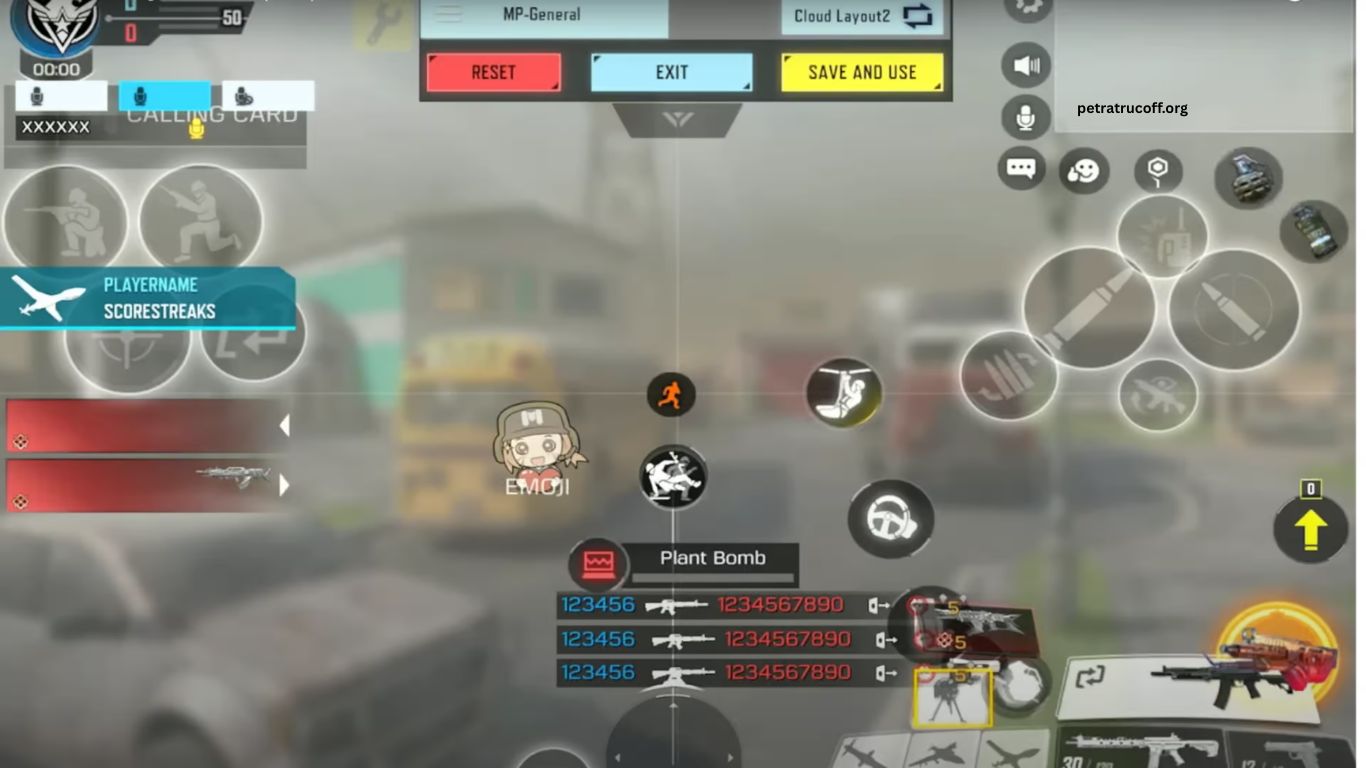
Customizing HUD settings can completely change your gaming experience. A well-designed HUD helps players react faster, control movement smoothly, aim accurately, and access important buttons without wasting time. Whether you play Free Fire, PUBG Mobile, COD Mobile, or another competitive mobile game, the right HUD layout can give you better control during intense matches.
Professional players rarely depend on default controls. They adjust button positions, sizes, transparency, and sensitivity according to their playing style. With a few smart changes and regular practice, you can create a comfortable HUD that improves reaction speed and overall gameplay.
Read More: Best Guns for Close-Range and Long-Range Battles
What Is a HUD in Mobile Gaming?
HUD stands for Heads-Up Display. It refers to the on-screen controls and information that allow you to interact with the game. Movement controls, fire buttons, crouch, jump, reload, scope, weapon switching, and other actions are usually part of the HUD.
Every player has different preferences. Some players prefer a simple two-finger layout, while others use three-finger, four-finger, or even more advanced claw controls. The best HUD is not necessarily the one used by a professional player. It is the layout that feels natural and allows you to perform important actions quickly.
Start With Your Playing Style
Before changing your HUD, consider how you normally play. Aggressive players who frequently rush opponents may need quick access to the fire, jump, crouch, and movement buttons. Players who prefer long-range combat may prioritize scope, weapon switching, and precise aiming controls.
Your finger placement also matters. A two-finger player should avoid creating unnecessary complexity. Players using three or four fingers can place additional controls around the upper portion of the screen for faster access.
Place Important Buttons Within Easy Reach
The most frequently used controls should be positioned where your fingers can reach them comfortably. Fire, aim, movement, jump, crouch, and reload usually deserve priority.
Avoid placing essential buttons too close together. Accidental taps can cause unwanted actions during combat. Give each important button enough space so your fingers can activate it confidently.
Adjust Button Size Carefully
Button size has a direct impact on accuracy. Tiny buttons can be difficult to tap during fast gameplay, while oversized buttons may block your view or cause accidental touches.
Start with medium-sized controls and increase the size of buttons that you frequently miss. Keep less important buttons smaller to maintain a clean screen.
Use Transparency to Improve Visibility
HUD transparency can help maintain a clear view of the battlefield. Large, solid controls may cover enemies or important visual information.
Reduce transparency on essential buttons only when necessary. Keep controls visible enough to identify quickly while preventing them from distracting you during combat.
Build a Comfortable Claw HUD
Claw controls allow players to use multiple fingers simultaneously. A three-finger HUD can provide faster access to shooting and movement, while a four-finger setup can offer even greater control.
When creating a claw layout, avoid copying another player’s HUD exactly. Finger length, hand position, screen size, and personal comfort vary between players. Use professional layouts as inspiration, then adjust every control according to your own hand movement.
Keep Movement Controls Natural
Movement is one of the most important parts of competitive gaming. Your joystick should remain in a comfortable position that allows smooth directional changes.
Avoid moving the joystick too far from its natural location unless you have a specific reason. A comfortable movement area helps you strafe, dodge, rush, and reposition without unnecessary finger movement.
Position the Fire Button Strategically
The fire button deserves special attention because it is frequently used during combat. Place it where your shooting finger can reach it instantly without interfering with aiming or movement.
Players using claw controls often place the fire button toward the upper section of the screen. Two-finger players may prefer a larger fire button near the traditional position. Test different locations until firing feels automatic.
Separate Jump and Crouch Controls
Jumping and crouching are commonly used during close-range fights. Keeping these controls separated reduces accidental presses and makes movement combinations easier.
Position them close enough for quick access but far enough apart to prevent mistakes. After adjusting them, enter a practice mode and perform jump, crouch, and movement combinations repeatedly.
Keep the HUD Clean
A professional HUD does not need to contain every button at maximum size. Too many visible controls can make the screen distracting and reduce visibility.
Hide or minimize controls that you rarely use. Organize the remaining buttons logically so your eyes and fingers can quickly identify them.
Test Your HUD Before Ranked Matches
Never use a completely new HUD for an important ranked match. Test it in training mode or casual matches first.
Practice common actions such as shooting, aiming, jumping, crouching, reloading, switching weapons, and moving around obstacles. Notice which controls feel uncomfortable and make small adjustments.
Make Small Changes Instead of Constantly Rebuilding
Changing your entire HUD every day can make muscle memory difficult to develop. Once you find a layout that feels comfortable, keep it for several sessions.
Make small improvements based on actual gameplay. Move one button, adjust its size, test it, and continue refining the layout. Consistency is more valuable than constantly chasing another player’s setup.
Consider Your Screen Size
Screen size can influence the ideal HUD configuration. A layout that works perfectly on a large phone may feel crowded on a smaller device.
Players using tablets or larger displays may have more space for advanced claw controls. Smaller screens require careful spacing to prevent overlapping buttons and accidental touches.
Combine HUD Settings With Sensitivity
A good HUD works best when combined with suitable sensitivity settings. Button placement determines how quickly you access controls, while sensitivity influences how your aim responds to finger movement.
Avoid changing HUD and sensitivity settings simultaneously without testing each adjustment. Changing one area at a time makes it easier to understand what improves or hurts your performance.
Develop Muscle Memory
Professional-level control comes from repetition. Once your HUD feels comfortable, practice until your fingers automatically move toward the correct buttons.
Regular training helps develop muscle memory for shooting, movement, jumping, crouching, and weapon switching. With enough practice, you can focus more on opponents and less on finding controls.
Common HUD Mistakes to Avoid
One common mistake is copying a professional player’s HUD without considering personal comfort. Another mistake is making every button extremely large. Excessive button sizes can reduce visibility and create accidental touches.
Players also frequently move controls without testing them properly. A layout may look impressive in a screenshot but perform poorly during real matches. Comfort, accessibility, and consistency should always come before appearance.
Frequently Asked Questions
What is a HUD in gaming?
HUD means Heads-Up Display and includes on-screen controls used to move, aim, shoot, jump, crouch, and perform other actions.
How can I create a professional HUD?
Place frequently used buttons within easy reach, adjust their size and transparency, then test the layout in practice matches.
Is a four-finger HUD better?
A four-finger HUD can provide faster controls, but the best setup depends on your device, hand position, and personal comfort.
How often should I change my HUD?
Avoid frequent changes. Keep a comfortable layout and make small adjustments only when you identify a specific control problem.
Should HUD settings match sensitivity settings?
Yes. A comfortable HUD combined with suitable sensitivity can improve aiming, movement, reaction speed, and overall control.
How long does it take to master a new HUD?
Regular practice can build muscle memory over time. Training consistently helps your fingers adapt to the new button positions.
Conclusion
Customizing HUD settings like a pro can improve control, reaction speed, aiming, and overall gameplay. Choose button positions based on your playing style, adjust sizes for comfortable tapping, and keep the layout clean. Test every change in practice mode and give yourself time to develop muscle memory. A personalized HUD that feels natural can help you play with greater confidence and consistency.

1 comentario
Pingback: Free Fire MAX Beginner's Guide to Winning More Games - PetraTrucoff