

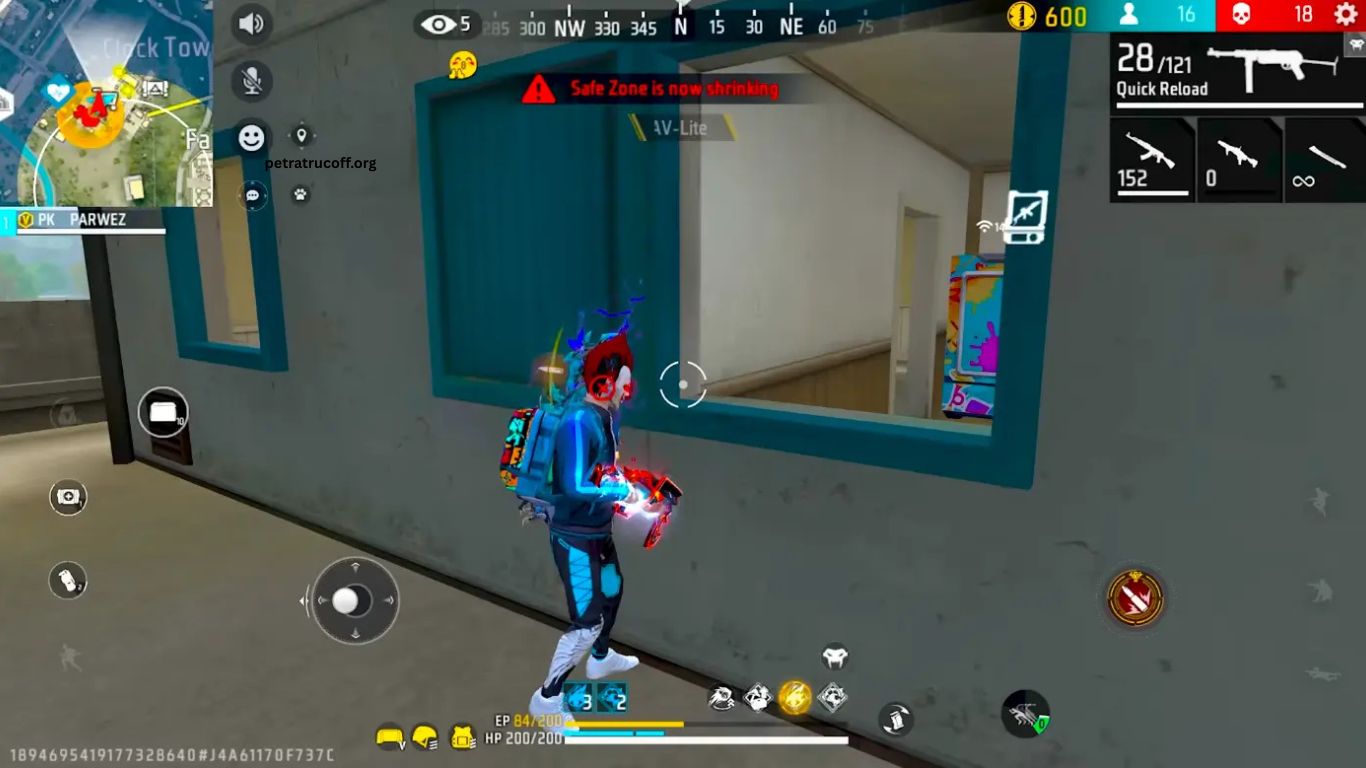
Free Fire delivers fast-paced battles where quick reactions, accurate aiming, and stable performance can decide every match. Proper game settings can reduce unnecessary lag, improve aiming control, and create a smoother experience across different smartphones.
Finding the best Free Fire settings depends on your device, internet connection, and personal playing style. Optimizing graphics, sensitivity, controls, and performance options can help players enjoy responsive gameplay and improve accuracy in close- and long-range fights.
Read More: Common Free Fire Mistakes That Cost You Matches
Best Free Fire Graphics Settings
Graphics settings directly affect game performance. Players using entry-level or older smartphones should prioritize stable frame rates instead of maximum visual quality. Set the Graphics option to Smooth for better performance. This setting reduces the workload on the processor and GPU, helping maintain consistent gameplay during intense fights. Players with powerful devices can experiment with higher graphics quality if the frame rate remains stable.
The High FPS option should be enabled whenever the smartphone supports it. Higher frame rates make character movement, camera control, and aiming feel more responsive. Avoid using unnecessarily high graphics settings when experiencing overheating, frame drops, or sudden stuttering. Smooth visuals with stable performance usually provide a competitive advantage over attractive graphics with inconsistent FPS.
Best Free Fire Sensitivity Settings
Sensitivity plays an important role in aiming and quick movement. The right configuration allows players to drag the crosshair smoothly while controlling recoil.
A balanced starting setup can include:
- General: 90–100
- Red Dot: 85–95
- 2X Scope: 75–85
- 4X Scope: 65–75
- Sniper Scope: 45–55
- Free Look: 70–80
These values should be treated as a starting point rather than universal settings. Screen size, touch response, device performance, and personal aiming habits can influence the ideal sensitivity.
Players who prefer aggressive close-range combat may benefit from higher General and Red Dot sensitivity. Players focused on long-range accuracy can lower scope sensitivity for better control.
Best Free Fire Controls for Better Accuracy
A customized control layout can make movement and shooting much easier. Place frequently used buttons within comfortable reach so important actions require minimal finger movement.
The Fire Button should have enough size to support quick taps and drag shots. A button size around 45–55% can provide a useful starting point, although players should adjust it according to their screen size.
Enable settings that support faster combat reactions, such as suitable weapon switching and convenient crouch or jump placement. Spend time inside Training Mode before using a new layout in ranked matches.
Best Aim Settings in Free Fire
Aim settings can influence how the crosshair responds when targeting opponents. Players should choose an option that matches their preferred combat style.
Precise on Scope can provide greater control for players who prefer manual aiming. Default may feel more comfortable for players who want assistance during quick encounters.
Experiment with different aim options in Training Mode. Testing settings against moving targets provides a better understanding of tracking, drag shots, and recoil control.
How to Reduce Lag in Free Fire
Smooth gameplay requires more than in-game settings. Background applications can consume RAM and processing power, reducing available resources for Free Fire.
Close unnecessary applications before starting a match. Keep sufficient storage space available and avoid playing while the smartphone is excessively hot. Overheating can cause performance throttling, leading to FPS drops and delayed touch response.
A stable internet connection also matters. Use a reliable Wi-Fi network or strong mobile data connection and avoid downloading large files while playing.
Best Free Fire Settings for Low-End Phones
Low-end smartphones should focus on performance rather than visual quality. Use Smooth graphics, enable the highest stable FPS option available, and avoid unnecessary background applications.
Reducing visual effects can help maintain consistent performance during crowded areas and intense battles. Keeping the device cool can also prevent sudden performance drops.
Players should avoid using third-party booster applications that promise unrealistic FPS improvements. Some applications may consume additional resources or create security risks.
Best Free Fire Settings for High-End Phones
High-end smartphones can support stronger graphics configurations while maintaining high frame rates. Players can increase visual quality gradually and test performance after every change.
High FPS should remain a priority for competitive gameplay. If higher graphics cause frame drops, lowering visual quality is usually a better choice than sacrificing stability.
A high-end device also benefits from a clean storage environment, updated system software, and proper thermal management.
Free Fire Settings for Better Headshots
Headshots require sensitivity control, crosshair placement, movement, and timing. Extremely high sensitivity does not automatically produce better headshots.
Start with balanced General and Red Dot sensitivity. Practice short upward drag movements while maintaining control over the fire button. Training Mode can help players develop consistent muscle memory without the pressure of a real match.
Avoid constantly changing sensitivity after every game. Give a configuration enough practice time before deciding whether it needs adjustment.
Why Stable FPS Matters in Free Fire
Stable FPS creates smoother visual movement and more responsive controls. During close-range fights, even small performance drops can affect tracking and reaction speed.
A consistent frame rate can be more valuable than maximum graphical quality. Players should select settings that their device can maintain during complete matches rather than settings that perform well only in quiet areas.
How to Test Your Free Fire Settings
After changing settings, enter Training Mode and test movement, aiming, weapon switching, and shooting. Try both close-range and long-range weapons to identify sensitivity problems.
Play several casual matches before using the configuration in ranked gameplay. If aiming feels too fast, reduce sensitivity gradually. If the crosshair feels slow, increase the relevant setting in small increments.
Avoid changing multiple settings at once. Adjusting one option at a time makes it easier to identify which configuration improves performance.
Common Free Fire Settings Mistakes
Using maximum graphics on an unsupported device can cause overheating and FPS drops. Another common mistake involves copying professional players’ sensitivity settings without considering differences in device hardware and touch response.
Constantly changing sensitivity can also prevent players from developing consistent muscle memory. Similarly, ignoring network stability may create lag that appears to be a device-performance problem.
The best configuration is not necessarily the highest or most popular setup. It is the configuration that delivers stable performance and comfortable controls on your specific device.
Frequently Asked Questions
What are the best Free Fire graphics settings?
Smooth graphics with the highest stable FPS option usually provide better performance and fewer frame drops.
What sensitivity is best for Free Fire?
A General sensitivity between 90–100 is a good starting point, but players should adjust it based on their device.
How can I reduce Free Fire lag?
Close background apps, keep the device cool, free up storage space, and use a stable internet connection.
Which settings are best for low-end phones?
Use Smooth graphics, maintain a stable high FPS, reduce visual effects, and avoid running unnecessary apps.
How can I improve headshots in Free Fire?
Use balanced sensitivity and practice controlled upward drag movements in Training Mode.
Should I copy professional players’ settings?
Not exactly. Professional settings can provide a starting point, but your device and playing style require personalized adjustments.
Conclusion
The best Free Fire settings for smooth gameplay combine stable graphics, suitable FPS, balanced sensitivity, comfortable controls, and reliable network performance. Smooth graphics and stable FPS should remain priorities for competitive players, especially on budget smartphones. Every player should fine-tune sensitivity and controls according to personal preferences and device performance.
